

How to Set Up Your New Device: The Ultimate Guide
Getting a new device is always exciting - whether it’s the latest Android smartphone or the newest iPhone. But unboxing is just the first step. The real thrill begins when you set up your device exactly the way you want it.
This guide will help you set up your device efficiently, sync accounts, transfer data, personalize settings, and install apps. Follow this step-by-step guide to make your new phone ready for daily use.
Key Takeaways
- This guide offers instructions for setting up both Android and iPhone devices.
- Gather necessary items like SIM card, Wi-Fi password, and backup before starting.
- The setup process involves understanding your device, connecting to networks, personalizing settings, and restoring or transferring data.
- Be patient and troubleshoot if you encounter challenges during setup.
- Explore and customize your new device after setup.
- Refer to the guide or user manual for further assistance
Step 1: Understand Your Device
Before diving into setup, it’s important to know which device you have, because setup differs between Android and iPhone.
Prerequisites for Android
Your previous phone (for data transfer)
SIM card, Wi-Fi password, and active internet connection
Backup your WhatsApp, photos, and important files via Google Drive or Google One (Settings > System > Backup)
Google’s built-in backup will also cover contacts, messages, call history, apps, and device settings
Prerequisites for iPhone
Active Wi-Fi or cellular connection
Apple ID and password (create one during setup if needed)
Credit/debit card if you plan to use Apple Pay
Previous iPhone or backup for data transfer
Android device (if transferring data from Android)
Optional: Check for company or school management requirements
Step 2: Setting Up Your Device
The next step that we will discuss in detail is the Device setup. Now that we know what is needed for the setup, it will go smoothly.
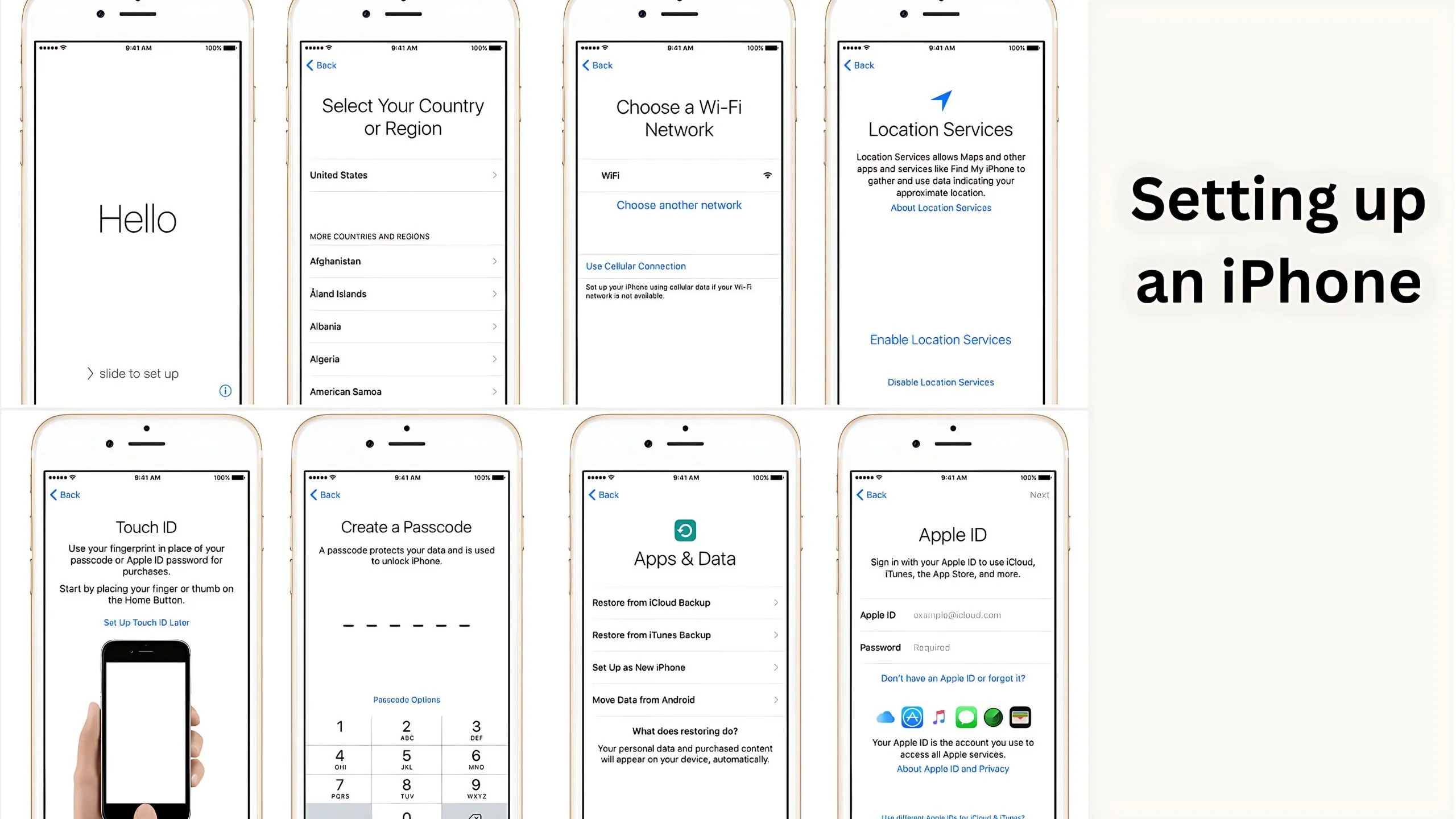
Setting Up an iPhone
Power On & Language Selection: Press and hold the power button. Follow the “Hello” prompts and choose your preferred language and text size.
Quick Start or Manual Setup:
Use Quick Start if you have another Apple device.
Tap “Set Up Without Another Device” if you don’t.
Connect to Wi-Fi or Cellular: Insert SIM/eSIM if prompted.
Security Setup: Configure Face ID or Touch ID, and set a six-digit passcode.
Data Transfer: Restore from iCloud, computer backup, or transfer from Android. If no backup, select “Don’t Transfer Apps & Data.”
Apple ID Sign-In: Enter your Apple ID and password; verify if prompted.
Customize Features: Enable Siri, Apple Pay, Screen Time, Light/Dark Mode, and data-sharing preferences.
Setting Up an Android Device
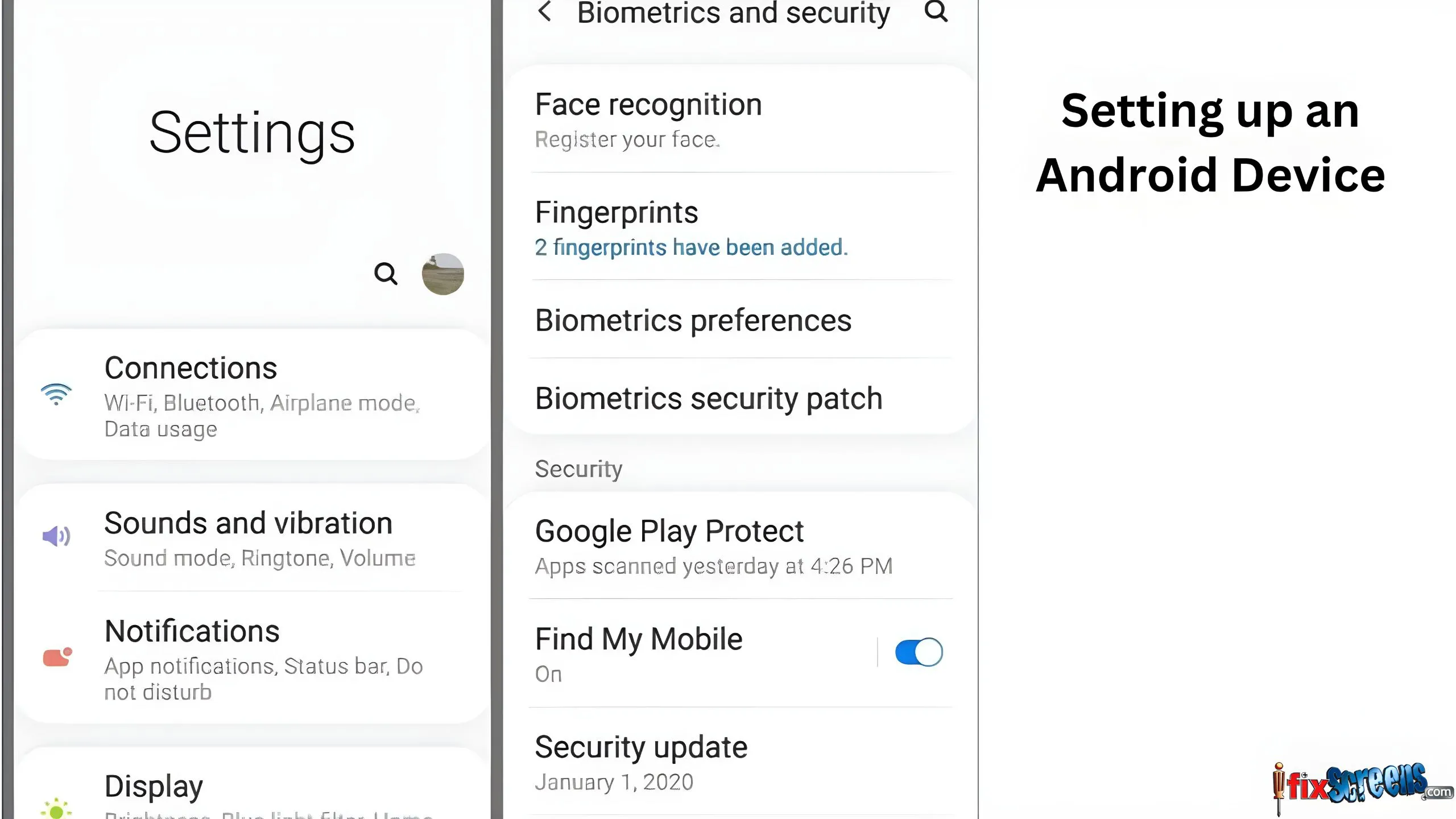
- Power On & Language: Turn on your phone, adjust text size and brightness, and choose your preferred language.
- SIM/eSIM & Wi-Fi: Insert SIM or download eSIM. Connect to Wi-Fi or skip to offline setup.
- Data Transfer: Tap “Copy apps & data” to transfer from old device or select “Don’t copy.” Sign in with your Google account for cloud backup.
- Legal Terms & Google Services: Accept Google’s terms and customize services.
- Security Settings: Set a PIN, password, or fingerprint unlock.
- Personalization: Choose light/dark theme, set up Google Assistant, Google Pay, and app navigation gestures.
- Finish Setup: Remove unwanted preinstalled apps, update apps via Play Store, and check system updates (Settings > System > System Update).
Step 3: Final Touches
- Charge your device fully
- Sync email accounts and social media
- Customize notifications, wallpapers, and app preferences
- Explore features like location services, Google Assistant, Siri, and mobile payments
Final Thought
Your new device is ready once preferences are configured and essential apps are installed. Setting up a phone is a personal journey, so explore and savor every moment. If challenges come, be patient and try troubleshooting for a seamless configuration, which will be according to your preference or liking.
FAQ's About Setting Up a New Device
Q: How do I set up my new phone?
A: Turn on your device and follow the onscreen instructions. Connect to Wi-Fi, sign in with your Google or Apple ID, and transfer data from your old device.
Q: Can I transfer data from an Android to iPhone?
A: Yes! Use Apple’s “Move to iOS” app to transfer contacts, messages, photos, and more from your Android device.
Q: What should I do if my new phone won’t turn on?
A: Charge your phone for at least 20 minutes. If it still doesn’t power on, contact official support.
Q: How do I customize my device during setup?
A: Adjust text size, display brightness, themes (light/dark mode), and set up security features like Face ID, Touch ID, or PIN unlock.
Q: Do I need a Google or Apple ID for setup?
A: Yes. A Google account is required for Android backup and apps, and an Apple ID is needed for iCloud, Apple Pay, and App Store access.
Q: How can I quickly set up my new Android phone?
A: Use Google’s backup and restore feature to copy apps, settings, and data from your old Android device seamlessly.